TL;DR: AI oversharing happens when an assistant makes company information available to someone who should not be able to access it. In ShareGate’s 2026 survey of 851 IT leaders across seven countries, 29% said AI had already surfaced sensitive internal data that should not have been accessible (ShareGate, 2026).
The risk often starts with existing permissions: shared folders, broad group access and content that has not been reviewed. Before connecting AI to company information, identify sensitive content, check who can access it and test the same question with users who have different permissions.
Permission-aware AI can help preserve those access boundaries. Claromentis AI Search is designed to tailor search results and AI-generated overviews to the permissions of the person searching. But permissions and answer accuracy still need to be tested with your own content.
If you connect an AI assistant to your company’s internal information, what stops someone in Marketing from getting an answer based on a restricted HR document? What stops a member of staff from finding a board paper they were never supposed to see?
The answer should be more than a promise from your AI supplier. The assistant needs to respect the permissions attached to the information, and you need to test that it actually does.
Key Takeaways
- ShareGate’s 2026 survey found that 29% of 851 IT leaders said AI had already surfaced sensitive internal data that should not have been accessible (ShareGate, 2026).
- AI can make existing permission problems easier to discover because staff can ask natural-language questions.
- Before rollout, identify sensitive content, review its permissions and test realistic questions with users who have different access.
- Permission-aware AI helps preserve existing access boundaries, but does not replace content governance or answer-quality checks.
- Claromentis AI Search is designed to tailor search results and AI-generated overviews to the permissions of the person searching.
I saw why this matters during seven years running Claromentis as a customer for more than 850 people across 20 countries at a multinational healthcare group. Different teams needed different information, and access had to reflect those responsibilities.
Today, as founder of Techspire IT and an Authorised Claromentis Partner, I help organisations assess how their intranet content, permissions and AI fit together. I also sell Claromentis, so weigh what follows with that in mind.
My view is straightforward: an AI assistant is only as trustworthy as the information it can access, the permissions controlling that information and the quality of the answers it produces.
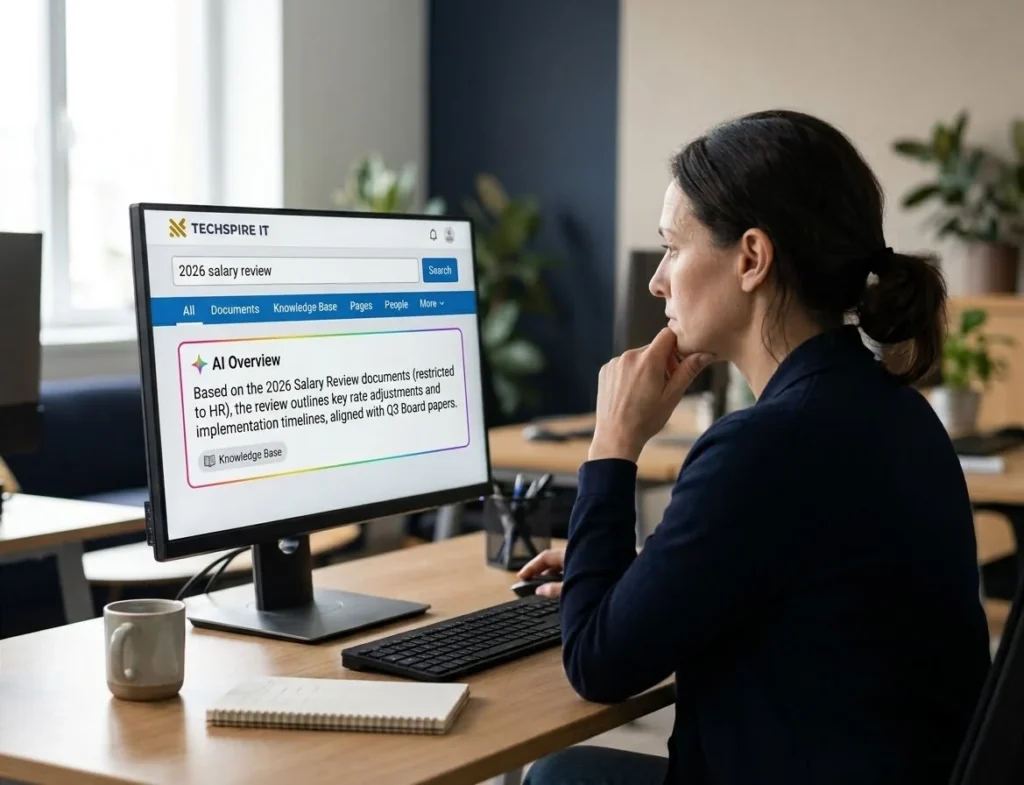
Could your AI assistant show someone the salary review?
Yes, if that person could already reach it. An AI assistant should not give someone access to information they are not authorised to see. But whether it achieves that depends on how the platform connects to company content and applies the underlying permissions. For example, think of a pay review saved in a general HR folder, or a disciplinary case left in a shared drive. Board papers under an old “everyone” permission are the same. Each one is a plain question away. Before the AI, finding them took an afternoon of clicking through folders. With it, finding them takes one sentence.
The gap is between the governance an organisation believes it has and the access employees actually have. A policy may say that salary information is restricted, but an old shared-folder permission can tell a different story. AI can make that mismatch easier to discover because employees can ask a natural-language question instead of searching through folders. Our guide to AI-powered intranets explains how this changes the way staff find company information.
Before connecting AI to company information, take this quick check. It will help you identify whether your sensitive content, existing permissions and AI rollout are ready for testing. It’s a self-assessment of your own answers, not a scan of your systems, so it can’t tell you that you’re secure.
Interactive check: Could your AI show the wrong person a restricted answer?
The four checks
Five questions
Question 1
Question 1 of 5
Where do your HR, pay and board files live?
Question 2
Question 2 of 5
Who can open each of those places today?
Question 3
Question 3 of 5
Does your AI follow the permissions people already have?
Question 4
Question 4 of 5
Has anyone asked it one sensitive question as two different people?
Question 5
Question 5 of 5
How will you switch the AI on?
Your first check
Start with check 1: find the sensitive places
Until you know where the pay reviews, disciplinary cases and board papers are, nobody can say who an AI would show them to. List them first, because the other three checks build on that list.
Start with check 2: who can see each place
Name an owner for each sensitive space and ask them who can open it today. Fix anything wider than it should be before any AI reads it.
If the test or the switch-on comes next
Your next step is the two-person test
Ask one sensitive question as someone with access and as someone without. Run it on any AI you're considering, before anyone relies on what it says.
See permission-aware AI in Claromentis
Use a working Claromentis environment to explore how AI Search handles information with different access permissions.
Plan to switch on in stages
Turn on one AI feature at a time. That way a gap found in one feature doesn't become a gap in all of them.
If the AI is already on, or the checks are complete
Keep checking now it's on
Read the AI's activity in your audit log, check both the source and the person's permissions when an answer looks surprising, and review access whenever someone moves role or leaves.
You've started in the right order
A self-check can't confirm it, though. Run the two-person test on your own content, then keep reviewing access when people move or leave.
See permission-aware AI in Claromentis
Use a working Claromentis environment to explore how AI Search handles information with different access permissions.
A self-check of your answers, not a scan. Nothing leaves this page.
Is Copilot oversharing only a Microsoft 365 problem?
No. Copilot oversharing is the name the problem got with Microsoft 365 Copilot: an assistant showing someone content they can open but were never meant to see. Oversharing itself is Microsoft’s own word, defined as “when employees have access to more information than is necessary to perform their roles”. Microsoft’s guidance names the usual causes plainly. They include site privacy settings that grant access to everyone in the organisation. They also include sharing set to “everyone” or “everyone except external users”, broken permission inheritance, and sites with no sensitivity label (Microsoft, 2025).
The underlying risk is not exclusive to Microsoft 365. Any AI assistant connected to internal company information needs to enforce the access rules applicable to that information. How it does this depends on the platform, the content source and the way permissions are applied. This is why permission handling should be tested during platform evaluation, rather than assumed.
This is a different risk from staff pasting sensitive material out into a public AI tool. That outward risk, and the do-not-paste rules for it, belong to our AI usage policy guide. This post is about the inward risk: what a colleague can see once the AI reads your own content.
Ban it, fix it later, or fix permissions first?
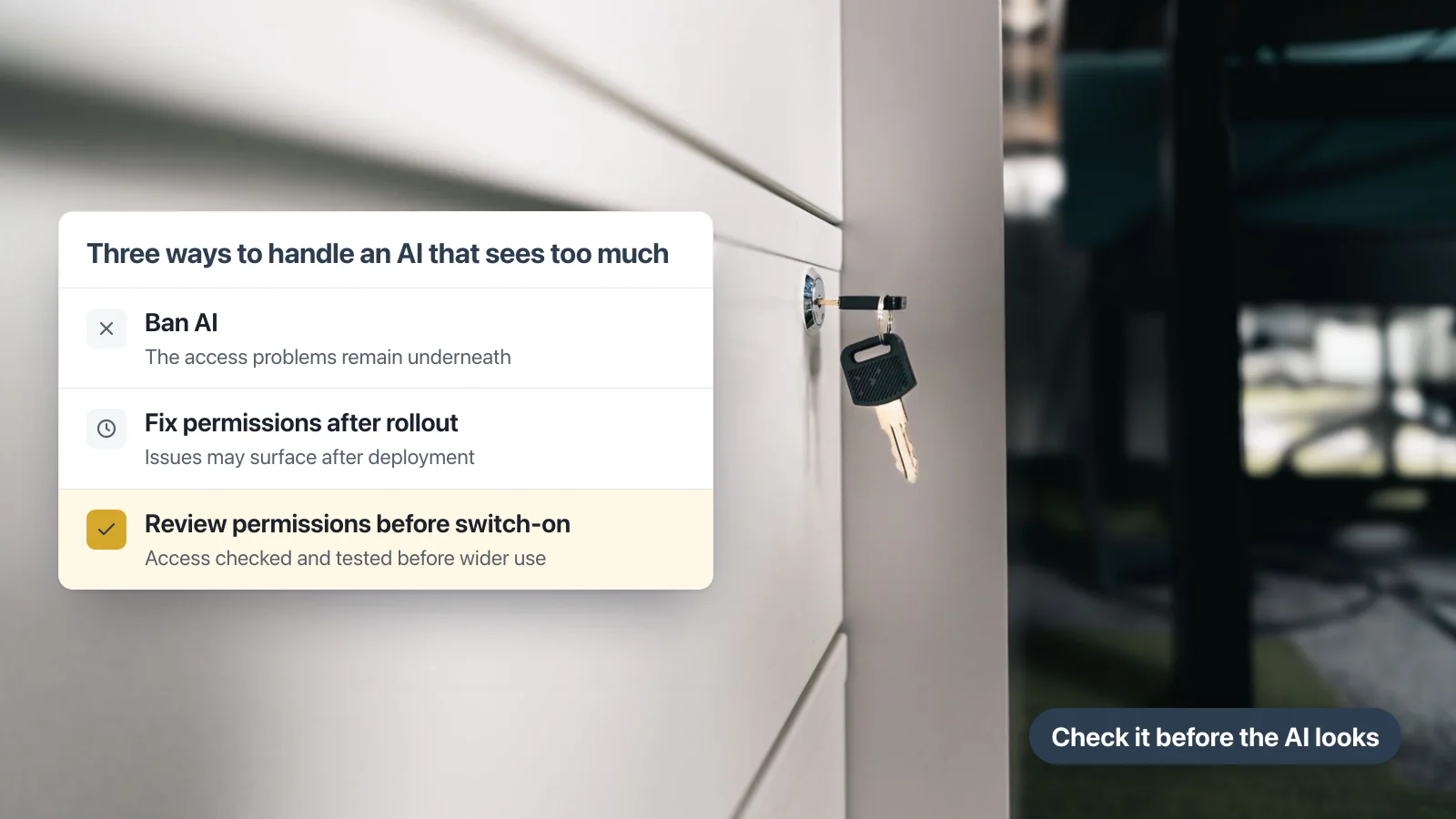
There are three broad approaches. You can avoid enabling AI, enable it and remediate permissions as issues are found, or review the most sensitive content before switching it on. The third approach gives you the opportunity to test the access boundaries before a wider rollout.
| Approach | What happens | Evidence you can show | Trade-off |
|---|---|---|---|
| Ban AI | The existing permission problems remain, but AI is not introduced as another way to discover the information | AI has not been enabled | Avoids this AI-related exposure, but does not resolve underlying access problems |
| Fix permissions after rollout | Existing access is reviewed and corrected while the AI service is already in use | Remediation records and retest results | Issues may be discovered after deployment |
| Review permissions before switch-on | Sensitive content is identified, access is checked and realistic permission tests are completed before wider use | Reviewed spaces, access decisions and test results | Requires preparation before rollout |
Microsoft’s own Copilot guidance uses pilot, deploy and operate phases, with oversharing addressed as part of the rollout (Microsoft, 2025). The same discipline is useful whichever platform you choose: identify the sensitive content, review access, test with different users and expand the rollout in stages. You do not need to wait until employees discover a problem to begin that work.
How do you prevent AI oversharing before switch-on?
The checks below apply whichever AI platform you choose. They help you establish whether your company information is ready to be used by an AI assistant, and they give you a practical way to test the access boundaries before a wider rollout.
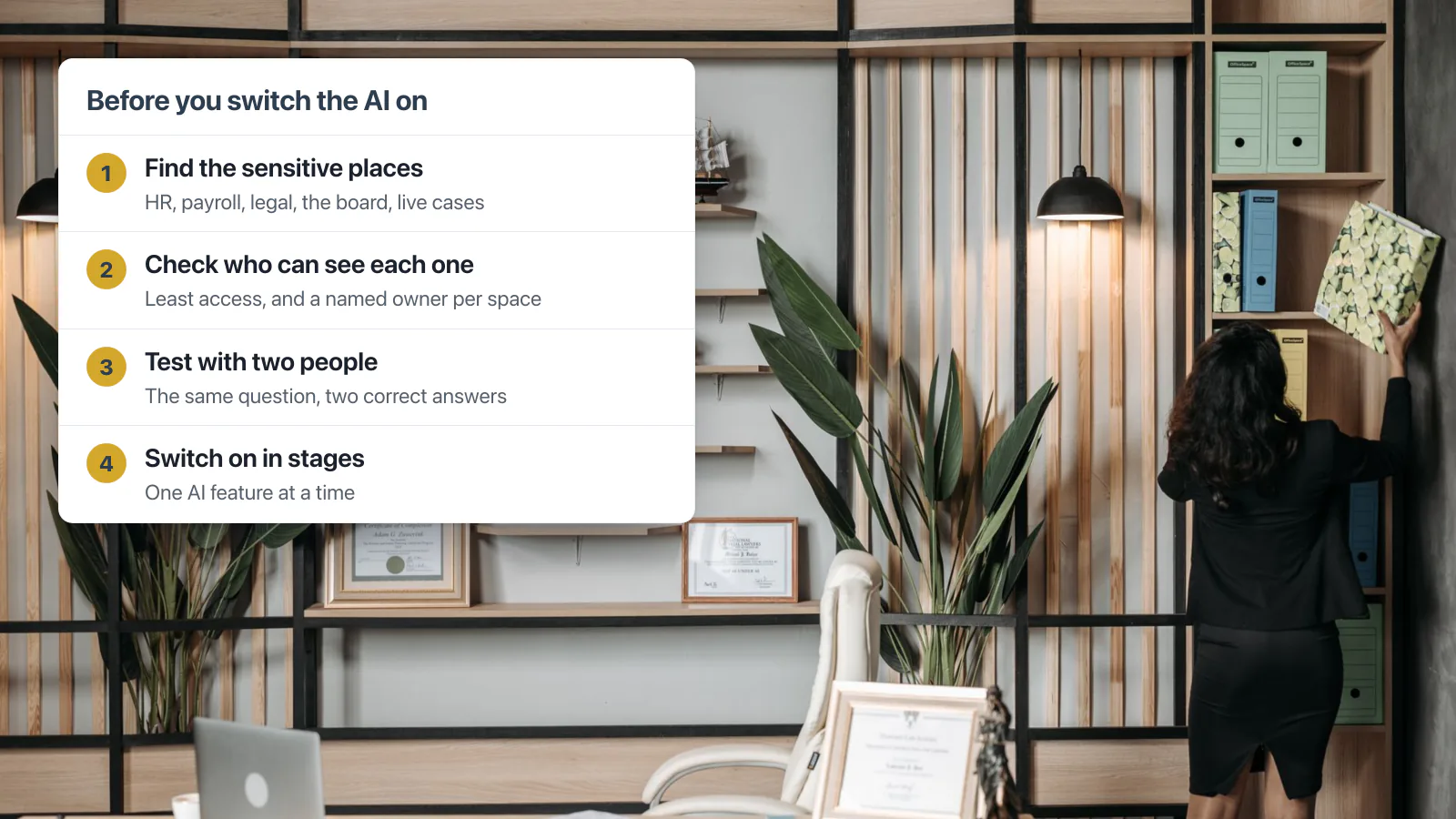
- Find the sensitive places first. HR, payroll, legal, the board, and anything in the middle of a live disciplinary or grievance case. Start with the information where inappropriate access would cause the greatest harm. You do not need to review every document in the organisation on day one.
- Check who can see each of them, and why. Aim for least access, with a named owner for each space. The principle: least privilege is the rule that each person should have only the access needed to perform their responsibilities. NIST defines it as restricting “the access privileges of users (or processes acting on behalf of users) to the minimum necessary to accomplish assigned tasks” (NIST CSRC glossary). An AI answering for someone is exactly such a process. How this applies in Claromentis: folders and documents have their own permissions, which can be assigned to users, roles and groups. Subfolders can inherit permissions from their parent folder, or have their own permissions where inheritance is disabled. Policies also have their own View rights.
- Test it with two people before launch, on the questions that matter most. The next section shows how.
- Switch features on in stages. In Claromentis, AI features are off by default and a system administrator enables them, according to its current administrator documentation. Start with a controlled group, test the content and access rules that matter, and expand usage only when the results meet your organisation’s requirements.
How do you test AI permissions with two people?
A two-person test is a check of whether an AI assistant respects the difference between two users’ access. Ask the same question as someone who can access a restricted space and as someone who cannot. Compare the answers and the sources used. This does not prove that every possible permission scenario is correct, but it is a simple, repeatable way to find problems before a wider rollout. It’s a starting point, not a complete security assessment.
First, pick a restricted space: something in HR, finance or legal. Next, ask a question as someone with access, and note the answer and its source. Then ask the identical question as someone without access. A pass leaves the restricted material out entirely. Do not only compare the final answers, though: check whether the AI reveals restricted facts, confirms sensitive details or exposes a source that the second user should not be able to access. Any of those is a fail. Record the result and investigate before rollout.
Inside Claromentis: what the permission test catches
Who may see the Finance team category
Finance team category, as the administrator sees itFinance group: View only

The answer someone outside Finance gets
Austin Glover, Marketing, not in Finance


Wrong for a large claimFinance's article, which Austin can't open, names the head of department, then the CFO.
The answer someone in Finance gets
Joe Bloggs, in FinanceSame question

Matches Finance's articleJoe can open it, so his answer cites it.
On our demo portal, one Knowledge Base category is open to the Finance group only.Austin, in Marketing, asks who has to approve a large expense claim.The AI answers from what Austin may read, and cites the Knowledge Base.It names only the line manager, from an HR article everyone can read.Finance's own article says otherwise, and Austin can't open it. A gap, not a leak.Joe, in Finance, asks the same question. His answer cites Finance's article.Put the rules everyone must follow where everyone can read them, then test again.
What happened when we ran it on Claromentis
We tested this on our Claromentis demo portal using sample users and sample content.
A Knowledge Base category containing a Finance approval rule was restricted to the Finance group. The rule stated that large claims, over £5,000, required approval from the head of department and then the CFO.
We then signed in as a Marketing user, who did not have access to that Finance category, and asked: “Who has to approve a large expense claim?”
The AI Overview used accessible content and did not expose the restricted Finance article. However, its answer named only the line manager. That is the one approval rule in an HR article everyone can read. For a large claim, that answer was wrong.
Then we asked the identical question as a Finance user, who can open the category. That answer named the head of department and then the CFO for claims over £5,000. It cited the Finance article as its source. So the permission held both ways: the Marketing user’s answer left the Finance article out, and the Finance user’s answer drew on it. We asked each question once.
This test demonstrated why two checks matter. The restricted Finance article was not exposed in the Marketing user’s answer, but that answer was not sufficiently accurate either. Permission handling and answer accuracy are separate requirements. Both need to be tested before an AI assistant is trusted with important business information.
What does a wrong answer tell you?
It tells you that AI governance has two separate questions: can the person access the information, and is the answer accurate and supported by what they can access? Here the first held and the second didn’t, because the information available to the Marketing user did not contain the complete approval rule. The fix sits in the content. Put the rules everyone must follow where everyone can read them, keep the sensitive detail restricted, and run the test again. You can run the same test on your own questions in a free 30-day Claromentis demo playground.
A product demonstration should show more than a polished answer on one screen. Ask the supplier to repeat realistic questions with users who have different access rights, show the sources behind each answer and explain what happens when accessible information is incomplete. That is a much more useful evaluation than a generic AI chatbot demonstration.
What does this mean for the people who run it?
For the IT or security lead, it turns “is the AI safe?” into a question you can answer with evidence. Here are the sensitive spaces, here’s who can open each one, and here’s the test we ran. For HR, finance and legal, it means owning your own spaces and saying who should see them, instead of leaving that to whoever set up the folder years ago. And for everyone else, it means the AI answers from what they should see, so they can trust what comes back.
This is not a problem an AI tool can solve on its own. Each sensitive area still needs an owner who understands what should be visible, who should have access and when that access should be reviewed. AI makes that responsibility more important, not less.
What happens after the AI is switched on?
Preventing AI oversharing doesn’t end at launch. In Claromentis, the audit log records the use of its AI features: in our own testing, an AI Search question appeared in the log under the name of the person who asked it. Audit administrators can read the log. It shows who asked and when; it doesn’t show whether an answer was right. By default the last 30 days stay searchable on the site, and older entries move into a downloadable archive log. So last week’s questions are in the live log, and last quarter’s are in the archive.
When an answer looks surprising, investigate both the source content and the user’s permissions. We saw a related issue during our own Claromentis testing in August 2026, on a test portal with sample users. A client user could access a staff directory containing contact details. When asked about a staff member, AI Overview summarised information from that accessible directory.
We changed the directory field permissions and asked the same question again. The revised answer returned only the person’s name and job title.
The problem was not an AI setting. It was the access granted to the underlying information.
Review access again whenever someone changes role or leaves. For example, someone who moves from HR into marketing keeps any HR access given to them by name, or through a group they’re still in. It stays until someone takes it away, and that’s the gap this whole process exists to close. A movers and leavers workflow can prompt that review each time; our page on business process automation shows how such workflows run on an intranet.
How does Claromentis keep AI answers inside the same permissions?
Claromentis AI Search is designed to tailor search results to the permissions of the person searching. If a user cannot view a document, folder or page, that content should not appear in their AI search results.
AI Overviews are grounded in the results available to that user and cite the content used, allowing employees to check where an answer came from (Claromentis AI-powered Search & Chat).
This matters because employees do not all need the same information. HR, Finance, Operations and managers have different responsibilities and different access rights. An AI search experience should respect those differences rather than treating the intranet as one shared pool of information.
Permission-aware search is not a replacement for reviewing access rights or checking answer quality. Organisations should test realistic questions with their own users and content before wider rollout.
At Techspire IT, we help organisations assess their existing intranet content, permissions and AI requirements before implementation. We can demonstrate Claromentis AI Search using different user access levels, show the sources behind AI Overviews and help you identify the checks to complete before rollout.
Our AI knowledge base guide covers who may see which answer inside a staff knowledge base. Our enterprise RAG page covers the data and deployment questions: where the AI runs and what happens to your data. AI agents, which take actions as well as find information, raise the same question of what they may see; our AI agents page covers how they work.
Frequently asked questions
Does this apply if we don't use Copilot?
Yes. The same risk can arise with any AI platform connected to company information if access controls are not correctly applied and tested. Copilot oversharing simply has the most public guidance about fixing it.
Can we wait until the problem shows up?
You can, but that means discovering an access problem after employees have already started using the AI assistant. It is better to identify sensitive areas, review permissions and test realistic questions before a wider rollout.
Do we need separate AI permissions on top of our existing ones?
That depends on the platform and how it connects to your content. A system that respects existing content permissions can reduce the need to maintain a separate set of access rules for AI search. You should still test how the platform handles restricted content, integrations and changes to user access.
Can permission-aware AI still give an incorrect answer?
Yes. Respecting a user’s access rights does not guarantee that an answer is accurate or complete. The AI may have access only to part of the information needed to answer a question, or it may draw an incorrect conclusion from the available content. Check the sources behind important answers and test realistic questions with different users.
Who should run the two-person test?
Whoever owns the rollout, together with someone from IT or security who didn’t set up the test. That way the result is a genuine check, not an answer they already expected.
What if we don't know where oversharing is happening right now?
Start with the sensitive places: HR, payroll, legal and anything mid-case. A full review of every folder is the eventual goal, not the first afternoon’s work.
Can we test Claromentis AI Search before rolling it out to everyone?
Yes. You can use a controlled demonstration and test environment to explore how Claromentis AI Search behaves with different users, permissions and content. Before a wider rollout, test the information your employees need, the content they should not be able to access and the accuracy of the answers returned. Techspire IT can help you work through these checks. A trial environment is a place to run them, not a security assessment in itself.
Where to start this week
Start with three areas where inappropriate access would cause the greatest harm. HR, payroll, Finance, legal and board information are sensible places to consider.
Name an owner for each area, check who can access it today and confirm whether those permissions are still appropriate.
Then choose one realistic question and test it with two users who have different access. Check both the answer and the sources behind it. If the result is wrong, investigate whether the issue is the permissions, the content or the AI’s interpretation.
If you are evaluating AI for your intranet, Techspire IT can demonstrate this process in Claromentis and help you assess whether your content and permissions are ready.
See how Claromentis AI Search handles restricted information
Don’t evaluate an AI intranet by one impressive answer. Test what happens when two employees ask the same question with different access rights.
Techspire IT can walk you through Claromentis AI Search and AI Overviews, demonstrate how permissions affect the information returned and show you the sources behind the answers.
Bring one example of information that should be restricted in your organisation. We’ll use it to show you what to evaluate before rollout.
Try the free 30-day demo playground
How we researched this: we read the Google results pages for “Copilot oversharing” and “AI access control” through DataForSEO on 4 November 2026, read Microsoft’s and ShareGate’s pages on that day, and ran a permission test on our own Claromentis demo portal with sample users and sample content.